Showing posts with label Problems and Solutions. Show all posts

Tuesday, September 6, 2011

Insufficient Memory?


Here's another way of clearing up your phone's memory!

Over time our phones stores up large amounts of data in their internal memory which causes lagging and other problems like insufficient memory space which limits the phone's ability to carry out certain tasks. I've written a guide before this on certain methods on how to clear up some space but apparently it hasn't been enough. Through numerous feedback from some of the readers and friends, I proudly bring to you new methods of creating more space!

#1 - Clearing up your FACEBOOK!
1. Click "Menu" - Go to "Settings"
2. Click on "Applications"
3. Click on "Manage Applications"
4. In the tab on top of the screen, click on "All"
5. Look for "Facebook" (if you have the application) - mine is currently storing 11.50MB
6. Open it and click "Clear Data"
7. A screen will appear saying "All of this applications data will be deleted permanently..." (you will probably have to log in again when you access your application)
8. Alternatively you could just click "Clear cache" which will save you less space but maintain certain data.
9. Wah-La!  My application memory has gone down to 5.09MB

#2 - Clearing up your FACEBOOK for HTC Sense!
1. Click "Menu" - Go to "Settings"
2. Click on "Applications"
3. Click on "Manage Applications"
4. In the tab on top of the screen, click on "All"
5. Look for "Facebook for HTC Sense"
6. Open it and click "Clear Data"
7. A screen will appear saying "All of this applications data will be deleted permanently..."
8. And your done!

#3 - You could repeat it for your internet browsers as well which will clear up your history and saved passwords etc.  
I can't advice on this because I personally don't store up data on my browser.


You'd probably have cleared up quite a bit of memory by now and bought yourself some time before the data starts to build up again! Hope you enjoyed this post! Cheers~!!

Thursday, September 1, 2011

Android: Low on space. Phone storage space is getting low.


This is probably the biggest pain in the ass that we Android users face. I can't really remember the circumstances as I've cleared mine quite awhile back, but it does include problems like not being able to update your apps and logging into your Gmail account to name a few.

The solution? Clearing up your Android's internal memory! Why? Our phone uses it's internal memory as it's RAM therefore the more space there is on the phone the faster it will function (my own theory... no idea if there's any truth to it! LOL!) and the other obvious reasons is removing that irritating icon at the top and being able to access our mail and update our apps in the marketplace.

From my experience, there's only 3 ways worth your time to solve this problem.


1. Rooting your android (Not recommended)
I like to keep things simple and my android is not rooted as well. But yeah, this way we are able to transfer all our data freely from our phone's internal memory and our SD card as well as other benefits which I will not be explaining in detail.


2. Apps2SD (compulsory for all froyo users)
App 2 SD
Just download it from the marketplace. This application is used to transfer movable applications to your SD card easily. The down side? Not all apps can be moved which still uses alot of space.. but it's not a major thing, you'll find out why in the next method.


3. Clearing up unnecessary Contacts Data. (Most effective!)
Our Androids stores up alot of unnecessary contacts data with it's syncing and actually uses up most of the phone's internal memory. Hence clearing it will probably give you an extra 20 to 100++ MB depending on how many contacts you have in your list and the amount of data stored in it.

DON'T WORRY: YOU WON'T LOSE ANY OF YOUR CONTACTS OR THEIR CONTACT DETAILS (e.g. name, phone number, address, email, facebook etc etc etc)

It's been awhile since i've done it and I'll try to remember the steps. So if it work's leave me a comment!

Step 1: Back up
1. Go to All Apps
2. Open People/Contacts
3. Press Menu
4.Click on Import/Export
5. Export to SD card
6. Click Google. *take note of where and the name of your file is for which Google/SIM/Phone*
 (it should look like this /sdcard/google_username_000001.vcf)
7. Confirm export - Click OK
8. Repeat steps for SIM and Phone *remember to take note of the file location*

*this step takes quite awhile if you have alot of contacts on your phone

Optional: to be really safe you can backup your contact files to your computer in case anything goes wrong =)


Step 2: Clearing the Contacts Storage
1. Go to Settings
2. Go to Applications
3. Go to Manage Applications
4. On the tabs menu click on All
5. Click on Contacts Storage
You will see a large amount of data and storage space used here!
6. Click Clear Data - this will delete your entire contact database so make sure you have done the backup steps or you'll lose all your contacts!

Your data and storage should be at 0.0MB, if it's not you can go to the People application earlier and individually delete all of them to prevent duplicated contacts.

Step 3: Restoring Contacts
1. Go to All Apps
2. Open People/Contacts
3. Press Menu
4. Click on Import/Export
5. Click Import from SD card
6. Click Google
7. Click Import one vCard file
8. Click on the file you've noted down earlier in Step 1
(e.g. google_username_000001.vcf)
9. Repeat for all steps accordingly for Phone.

Step 4: Syncing your Contacts (Optional unless your really need to... cause this will just cause another build up of low storage memory)
1. Go to Settings
2. Click on Accounts & sync
3. Turn on your Auto-sync (this will sync your phone contacts and data with your facebook, google, twitter etc etc.)

Thats it! You will notice that your phone will have ALOT of extra internal memory.

Note: This was written entirely on memory and the author will not be held responsible for any damage occurred or lost of data in your Android. There are more accurate and detailed guides about this on other pages if you want to be safe.
Testimony:
- I personally tried this method with my phone. My contact storage before clearing the contact storage was 19.43 MB and after following the tutorial, my contacts storage went down to 4.07 MB. Thanks! - Jason , Malaysia


- since clearing the contacts storage really wasnt enough to solve my space problem. i went and cleared data for my fb, mail, dialer storage and dunno what else. everyhing is fine.. except, all my msgs are gone. LOL, but return...i get 50mb freed up. - Joanne, Malaysia

Friday, May 27, 2011

Fixing Unifi!

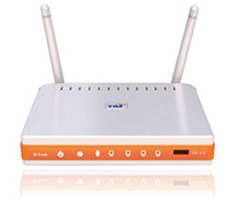
Alright here's the deal... I just got unifi installed and got all excited over it! Epic!! Went on installing the wireless settings for my laptop, uncle's laptop, brothers laptop... and when it came to my dad's laptop, we couldn't detect the unifi network! After trying and trying and restarting and restarting... things didn't get better... especially it being an old underpowered machine, the startup time takes about 5 to 10 minutes, which frustrated me even more!! Hence...
Yeah... I wish...
Anyway I went ahead and did some research which brought me over to this dude's blog, which reveals some security flaws with unifi. Check it out here! This dude knows all the shit about unifi! Except when it comes to the latest firmware 7.09 for the D-Link router. 
Like seriously I spent 3 hours medaling with the shit trying to use it as a bridge to my previous router, but naaaahhhhh... doesnt work with the latest firmware. REMEMBER: ALWAYS BACK UP YOUR SETTINGS BEFORE TRYING ANYTHING!

Well let's cut to the chase... I noticed this on my dad's laptop wireless network center 


- The capability of your network adapter does not match the requirements of the network


I figured that it's probably my the computer's network adapter just ain't "canggig" enough to handle N-wireless settings and that I had to buy an external network adapter. Luckily, I'm a cheapskate and don't want to give the tenants of digital mall that hundred bucks or so, therefore I gave it one last search before giving up and I came across this in LYN!
- - - - - - - - - - - - - - - - - - - - - - - - - - - - - - 
1) Login to http://192.168.0.1/ via a LAN cable.
Username: admin
Password: telekom (the password could be blank)

2) Click "Wireless Setup" on the left-hand menu.

3) Click "Manual Wireless Connection Setup" button.

4) Go to "Wireless Network Global Settings" section.

5) Untick "Enable Auto Channel Selection" checkbox.

6) Set the "Wireless Channel" number to 11.

7) Click "Save Settings" button.

Your router will reboot and it'll take a while, i.e., 2 to 3 minutes.

Once it has come back online, you should be able to detect the wifi and connect to it.
- - - - - - - - - - - - - - - - - - - - - - - - - - - - - - 

And Waaa-LAaaa!! It works! My dad's computer can now use Unifi!!

For those who faces a similar problem! Do not fear, salvation is just 2 minutes away!

Enjoy!